How to Create a Watermark Brush in PSE
It’s always great to learn new things, right? I mean I know we aren’t all in school anymore but still, it’s always good to learn a new thing once a day! That’s what I’ve always been told anyway. So today I’ll show you how to make a Watermark brush in PSE. Super simple and super easy!
btw, I use PSE 8 but I’ve played around on 10 and I know it isn’t a whole lot different, obviously 10 has more features but anyway, you get the picture 🙂
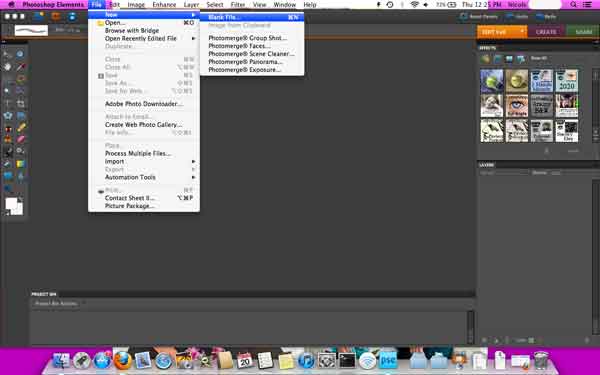
Ok first off you’ll start by opening PSE up and going to New–> Blank File
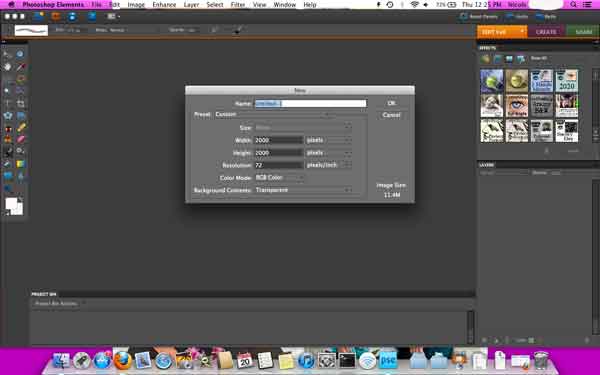
It’s always better to have a huge canvas then to have too small of a canvas to work with, so I opened a 2000×2000 pixel canvas. Make sure you select Transparent at the bottom too.
Now on the left, select your Text box, make sure your text is a dark color (I went with black) just so you can see what you’re typing. Type your information, I typed Life’s a Beach obviously 🙂 and then play around with your fonts. I have fonts from Kevin & Amanda and Dafont also has great free fonts.

Once you have selected your font and typed your information, you’ll have something that looks like this. Now you’ll want to click on your cropping tool, make sure it is set to No Restraint (up toward the top) and crop in real close to your text. Then click the green check mark.
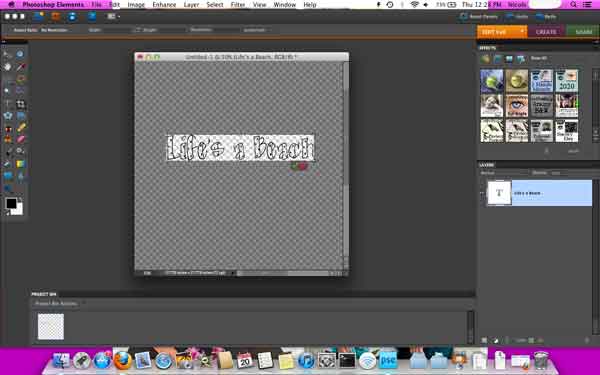
Now you’ll end up with what is just behind this big white menu box :). Once you have your area selected & cropped you’ll go to Edit –> Define Brush.
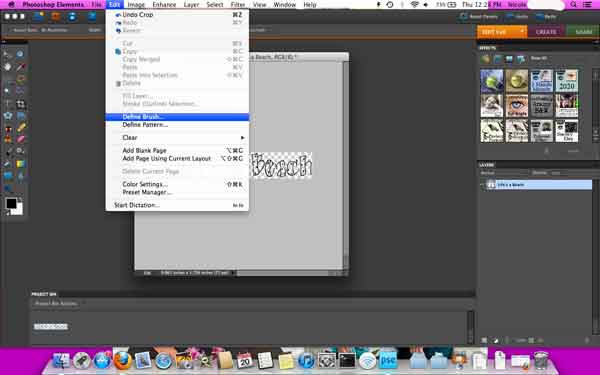
It will give you the option to save it as a name. Save it as something you’ll remember. Mine is Life’s a Beach, how easy, right :).
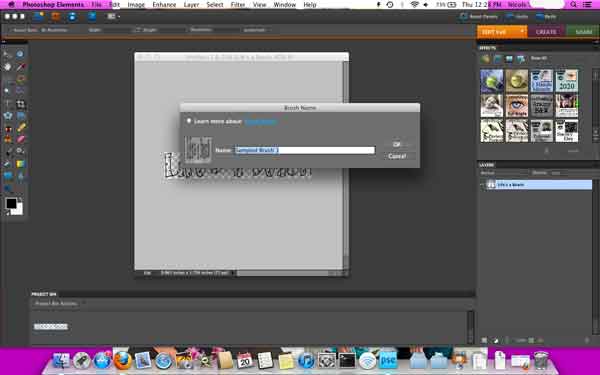
Now you’re set. Open up a photo that you want to watermark. After you’re finished editing click on the brush tool. Scroll to the bottom to find your brush, click on the brush and you’re set.

I generally set mine to 50% opacity so it isn’t over bearing however sometimes you have to bump up or down the opacity.

Change your color to white, or whatever color you’d like your watermark, for some reason in this picture mine is showing black but it stamped white… Don’t ask :). I must have changed something and wasn’t paying attention when I did my screen shots :).

And there you have it… your watermark. Always there at your beck and call and you don’t have to type your blog or name or whatever every time. Super cool, right?
Happy Friday!
Linking up:
Creative Thursday Link up
Delightfully Inspiring Thursday
Friday Favorites
Showcase your Talent Thursday